The Settings options dialog opens.
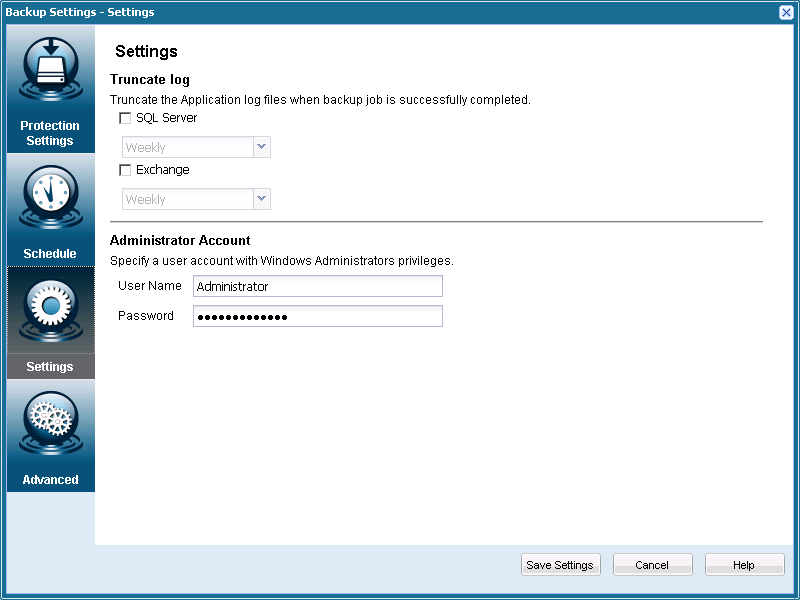
- Truncate Log
Specifies to truncate the accumulated transaction log files for the selected applications after the next successful backup.
CA ARCserve D2D backups consist of a snapshot image and the transaction log files that were created for it. At some point in time, these older (committed) transaction log files are no longer needed and should be purged to make space for new log files. The process of purging these log files is called truncating the log. This option enables truncating of committed transaction log files, which conserves disk space.
The available options are SQL Server and Exchange Server. You can select either, both, or none of these applications. If you select any of these applications, you will also be able to specify a scheduled time period (Daily, Weekly, or Monthly) for automatic log truncation:
Note: The transaction log files cannot be truncated without performing a successful backup.
- Daily - Each day after the backup completes successfully, the committed transaction logs will be purged immediately.
- Weekly - After 7 days, the committed transaction logs will be purged immediately after the backup completes successfully.
- Monthly - After 30 days, the committed transaction logs will be purged immediately after the backup completes successfully.
If a backup job is already running at the same time the purging is scheduled to be performed, the purging operation will be moved to the next scheduled job.
For Example:
If you scheduled an Incremental Backup to be automatically performed every day at 5:00 pm, and then started a Full Backup manually at 4:55 pm. Assume that the backup successfully finishes at 5:10 pm.
In this case, the Incremental Backup that was scheduled for 5:00 pm will be skipped because the ad-hoc Full Backup is still in progress. Now the committed transaction log files will be purged after the next successful backup job. In this case it will be performed on the next day after the scheduled Incremental Backup completes successfully at 5:00 pm.
- Administrator Account
Specifies the User Name and Password with access rights to perform the backup. CA ARCserve D2D will verify that the name and password are valid and the user belongs to an administrator group.
Notes:
- To specify a domain account, the format for user name should be a fully qualified domain user name in the form of "<domain name>\<user name>".
- If the Administrator Account information for the CA ARCserve D2D server is changed (User Name/Password), you should also reconfigure the Administrator Account information from this dialog.
Your backup settings are saved.