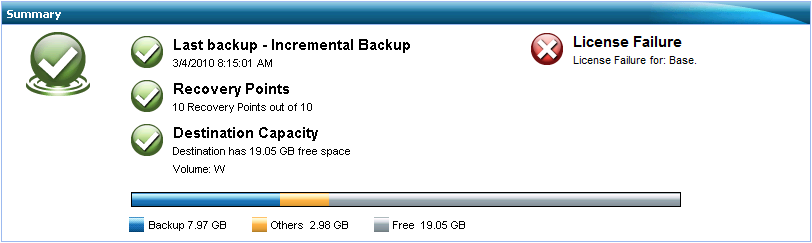
The Backup Status Overview section of the home page provides a quick and easy, high-level status of your backup health.
- Last Backup
Displays the date and time of the last backup, along with the status of that backup.
- If the last backup was successful, a green check icon is displayed indicating your machine is safely protected.
- If the last backup was not successful, a red X icon is displayed indicating your most recent backup failed and the machine cannot be restored with that recovery point.
- If no backups have been performed for your machine, a yellow caution icon is displayed indicating your machine is not protected.
Note: If a backup fails because of a license validation failure, the License Failure status will be displayed to the right of the Last Backup information.
- Recovery Points
Displays the number of Recovery Points for your monitored server. You can specify a minimum number of recovery points to maintain a safe recovery environment.
- If there are no saved recovery points, a red X icon is displayed indicating a dangerous backup environment.
- If you have at least one recovery point, but have not reached your specified number of recovery points, a yellow icon is displayed.
- If you have reached the specified number of recovery points, a green check icon is displayed.
- Destination Capacity
Displays the amount of free space available at your backup destination. The Destination Capacity display provides an additional indication of the amount of space used for the backups, the amount of space used by others, and the amount of available free space.
- If the amount of available free space is reduced to below the predetermined safe percentage of your destination capacity, a red X icon is displayed indicating an unsafe backup environment and the immediate need to increase the free space capacity of the backup destination or change the destination to another location which has adequate space.
- If the amount of available free space is above the safe level, a green check icon is displayed.
Note: You can set up an email alert notification when the amount of unused space at the backup destination is less than a specified value. For more information about setting up this email alert notification, see Specify Advanced Backup Settings.